We are aware that the data is transmitted on a network using packet-switching i.e. data is broken down into chunks of data known as packets. So, when there is a packet loss or poor network performance the network administrators use certain networking tools to analyze the network and troubleshoot problems. One of those tools is Wireshark. Wireshark is an open source software which tracks and analyzes the packets. It is used for network troubleshooting, analysis, software and communications protocol development, and education.
It is assumed that Wireshark has already been downloaded. If not it can be downloaded from here.
Once you have done installation, search for the below icon and open it.
Familiarizing with the interface
After opening wait for a while to observe the active interfaces. Detect the appropriate interface for packet capture. If this window does not open up directly , go to capture option and check the interface for packet capture.

The important icons that are required for analyzing. The start/ stop for packet capturing and the filter as the name depicts filters the protocols. The inputs can be HTTP, TCP and many complex commands.

Click on the start button and begin packet capturing.

TO START THE PACKET CAPTURE, HIT THE ICON —————>
This will open up a window which looks like this

Analyzing packets of a webpage.
- Open up your default browser.
- Make sure the recent browser history and cache is cleared. This is because the cache might stop the complete DNS lookup on the server thus creating unclear capturing of packets. Open up the webpage and wait till it loads.
- Stop the packet capture.

STOP THE PACKET CAPTURE USING THE STOP ICON —————->
From the packet listing window look at the HTTP GET/ response message and investigate the details.
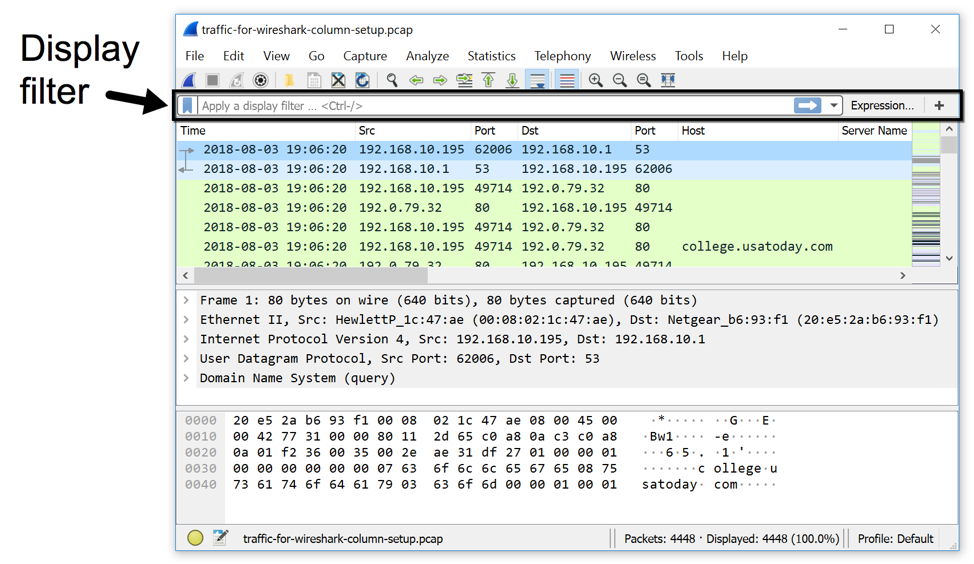
DETAILS THAT YOU WILL OBSERVE ARE:
- THE PACKET CAPTURE NUMBER
- TIME OF CAPTURE
- IP ADDRESS OF SOURCE( YOUR COMPUTER)
- IP ADDRESS OF DESTINATION( THE WEBPAGE)
- THE PROTOCOL (HERE HTTP)
- THE LENGTH OF PACKET CAPTURE
- INFO ABOUT PACKET CAPTURE
An HTTP client sends an HTTP request to a server in the form of a request message which includes following format:

A Request-line.
The Request-Line begins with a method token, followed by the Request-URI and the protocol version, and ending with CRLF.
The elements are separated by space SP characters.
Request-Line = Method SP Request-URI SP HTTP-Version CRLF
REQUEST METHOD
The request method indicates the method to be performed on the resource identified by the given Request-URI. The method is case-sensitive and should always be mentioned in uppercase and be followed by HTTP/1.1
Here, the request method is GET
GET
The GET method is used to retrieve information from the given server using a given URI. Requests using GET should only retrieve data and should have no other effect on the data.
The Request-URI is a Uniform Resource Identifier and identifies the resource upon which to apply the request.
Request-URI = “*” | absoluteURI | abs_path | authority
The time of request sent , the count of the packet , the source and destination address and the HTTP protocol requested with the length of the request and the information of the request is given in the HTTP REQUEST MESSAGE.
Zero or more header (General|Request|Entity) fields followed by CRLF.
An empty line (i.e., a line with nothing preceding the CRLF) indicating the end of the header fields.
Where do you get details like status code, last modified etc.

For a packet capture like this one with status code 200 OK and text/html we have details like content length as the text is captured.
GO TO HTTP in the message box and keep expanding till we open up the content length details.

The number of packets of HTTP can be known with the navigation: Statistics -> HTTP -> Packet Counter/Requests, etc.
This is a basic method to capture HTTP packets. The Wireshark tool is capable of performing more tasks. If you want us to include more data on Wireshark, you are free to comment or contact us!
References:
- More on HTTP
- Network Performance
- OSI Model
 Techprodezza